打开 App Store 并安装 Cawice 应用程序
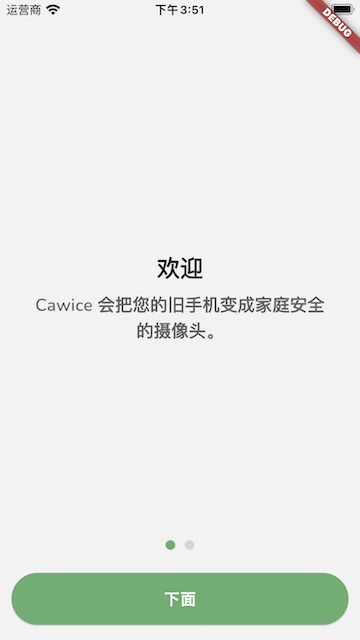
Cawice on App Store

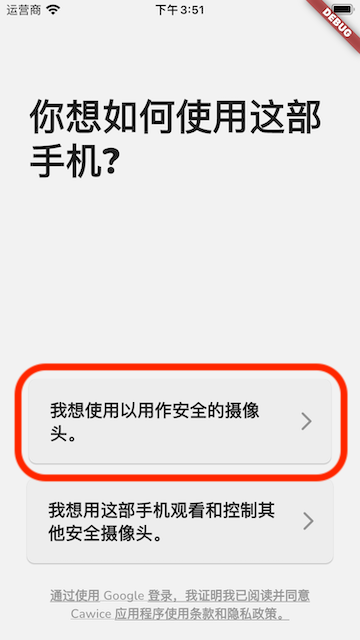
选择做相机的安装登,接下来登录 Google 帐户

Select iphone usage

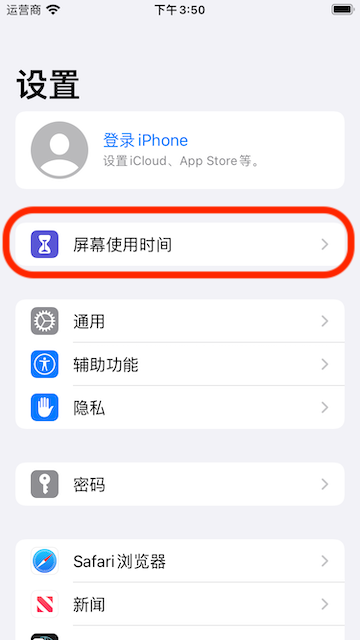
打开应用程序"设置"并选择"使用时间"

Settings->Screen Time

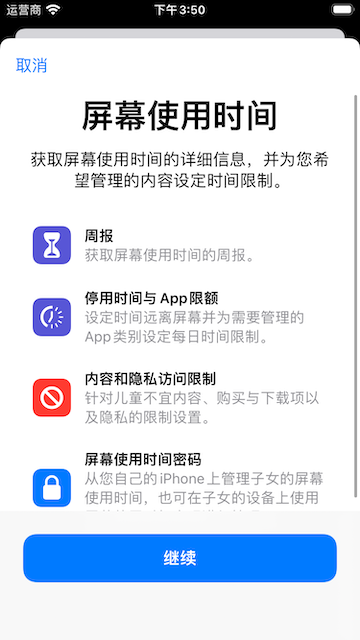
首次使用该功能时,您会看到如下界面

Screen Time first time access 1

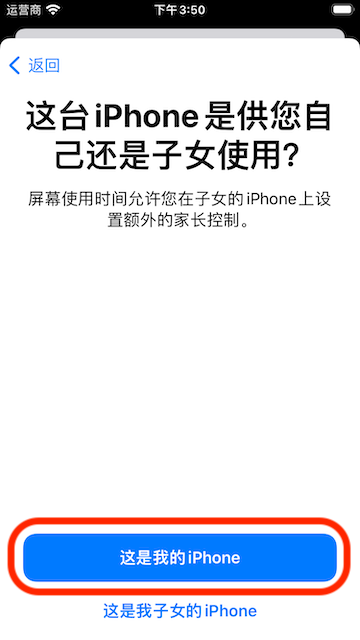
选择"这是我的 iPhone"继续

Screen Time first time access 2

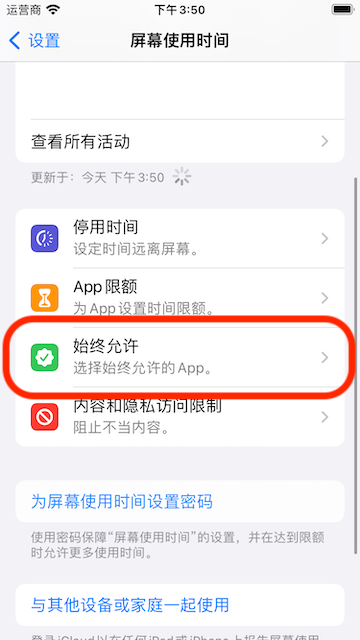
选择"始终允许"以查看应用列表

Go to allowed app list screen

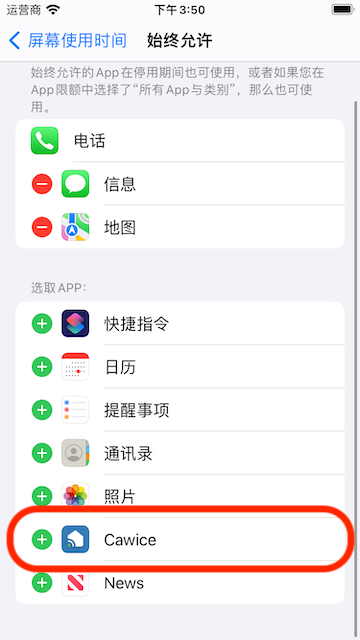
找到 Cawice 并选择它以将其列入程序白名单

Add Cawice app to Allowed app list

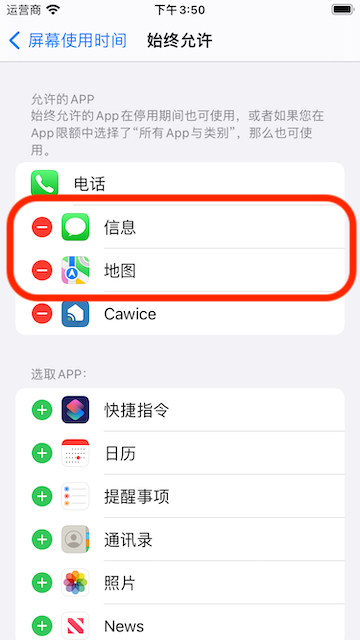
仅将 Cawice 保留在允许的应用程序列表中

Remove others apps from the list

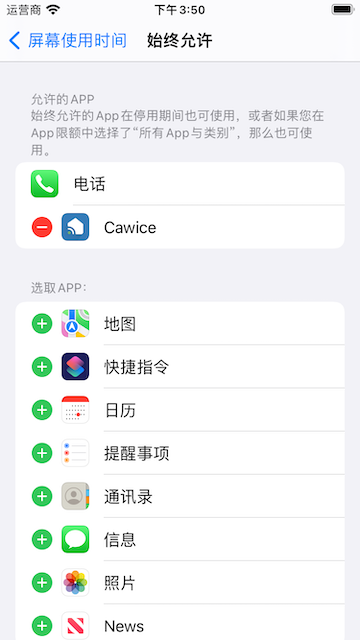
确保你在你的设备上看到这个

Final screen of Alway Allowed

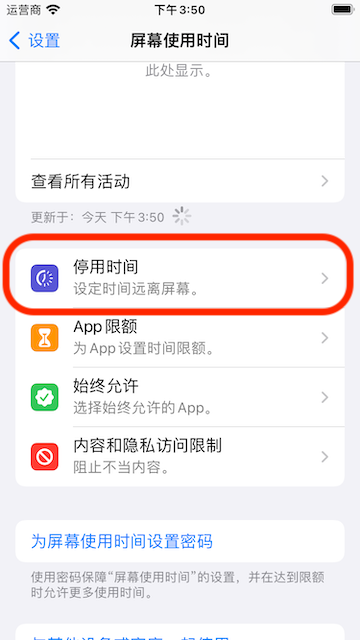
从屏幕时间屏幕中选择"停机时间"

Open downtime screen

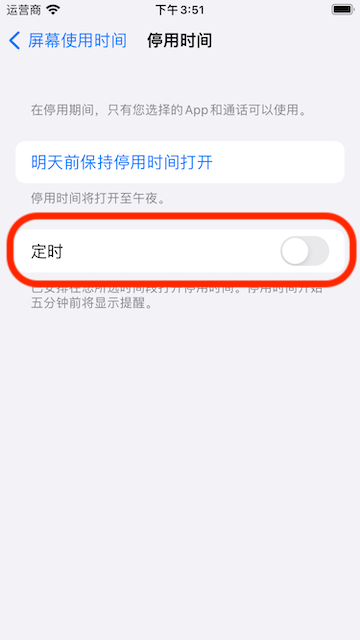
打开计划的停机时间

Downtime screen

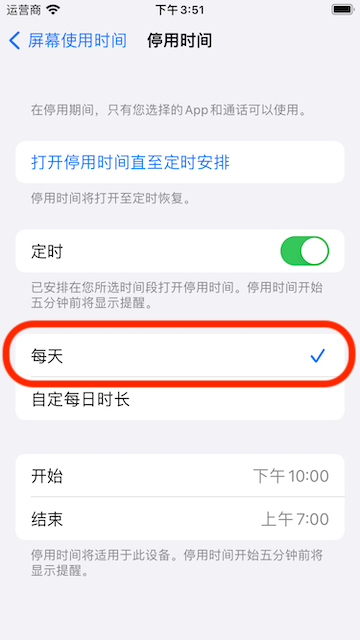
选择"每天"选项

Select Every day schedule

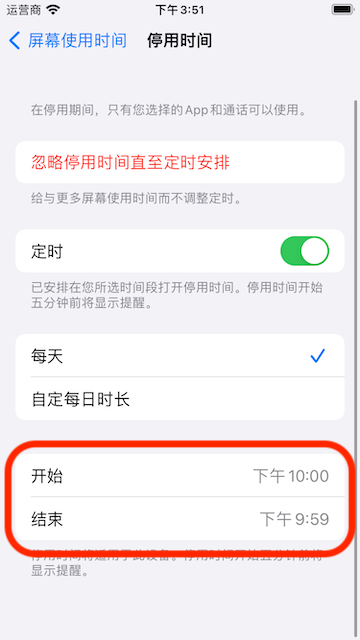
开始安装时间:晚上 10:00 至:晚上 9:59

Set time of schedule

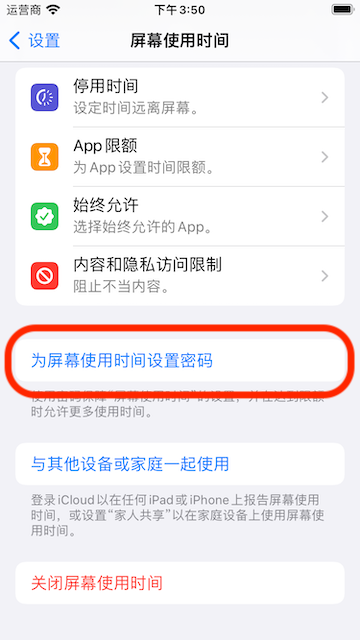
返回"屏幕时间"屏幕并找到"使用屏幕时间密码"

Set time of schedule

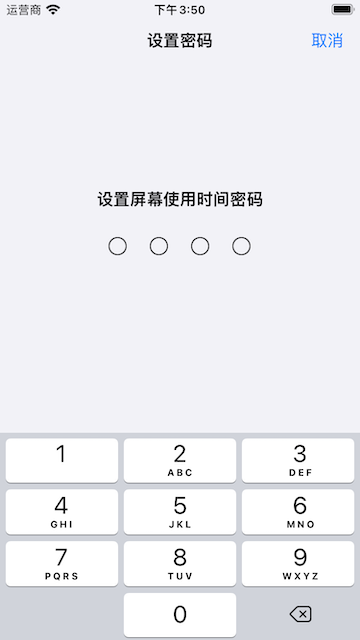
设置你喜欢的密码

Set screen time passcode